
Printing
Setup the printing agent
Three steps. Download, run, pick your printer. Bills and KOTs print from Desto after that.
Download printing agent- 1
Download the agent
Get DestoPrintAgent.exe. It’s a small local app that talks to your thermal printer.
- 2
Run it once
Double-click the file. It starts on this computer — no extra install steps.
- 3
Open the setup page
In your browser go to the local setup URL. Pick billing and kitchen printers, paper size, then test and save.
Setup URL
After the agent is running, open this on the same PC:
http://127.0.0.1:4000/setup.htmlOpen setupChoose transport, paper width, and the Windows printer queue. Use Test Bill / Test KOT, then Save.
What you’ll see
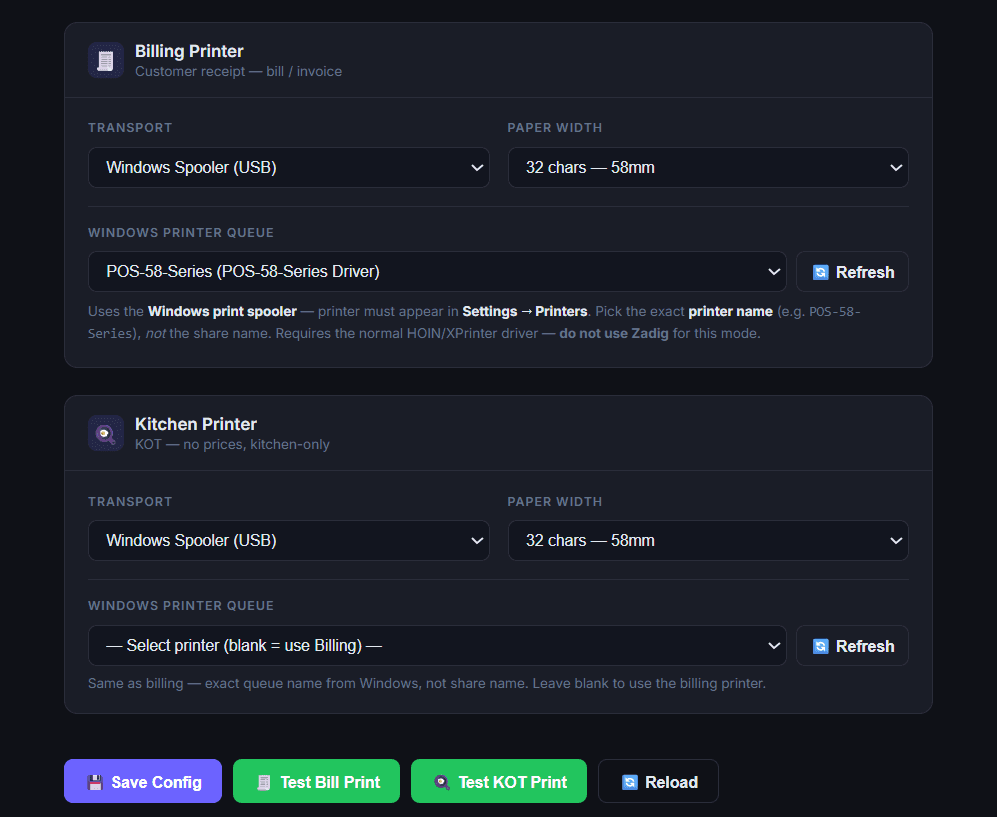
How to fill the options
Transport — leave this on Windows Spooler (USB) if the printer is plugged into this PC. That’s the usual setup.
Paper width — match the roll in the printer. Most 58mm machines use 32 chars. Wider 80mm rolls use 42 or 48 chars. Wrong size makes the bill look cut off or too spaced.
Windows printer queue — pick the exact printer name from Windows (e.g. POS-58-Series), not a share name. Hit Refresh if it doesn’t show yet.
Kitchen printer — optional. Set a second queue for KOTs (no prices). Leave it blank to print kitchen tickets on the same billing printer.
Test, then save — use Test Bill Print and Test KOT Print. If paper comes out correctly, click Save Config. You’re done.